

System Insights capabilities can be managed and configured to meet your deployment needs. This article explains how to adjust settings for each capability using PowerShell or Windows Admin Center, with step-by-step examples and screenshots.
View capabilities
PowerShell
You can list all of the available capabilities using the Get-InsightsCapability cmdlet:
- Open PowerShell. Enter the following command:
Get-InsightsCapability
Screenshot of using the Get-InsightsCapability cmdlet in PowerShell.
Windows Admin Center
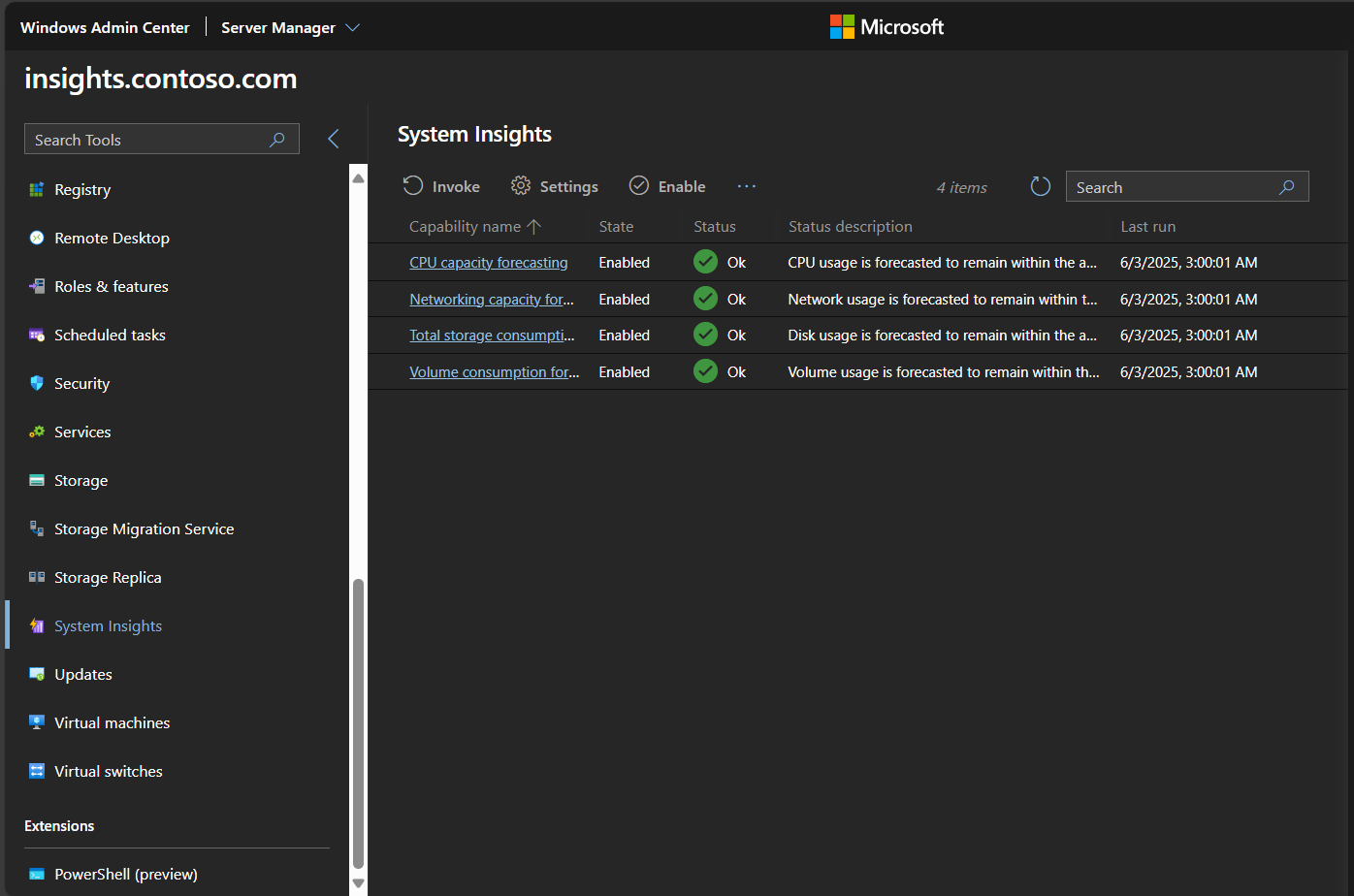
These capabilities are also visible in System Insights extension:
- From Windows Admin Center, open Server Manager.
- Select your server.
- Select System Insights from the list of extensions.
Screenshot of System Insights extension and the available capabilities in Windows Admin Center.
Enable and disable a capability
Each capability can be enabled or disabled. Disabling a capability prevents that capability from being invoked, and for non-default capabilities, disabling a capability stops all data collection for that capability. By default, all capabilities are enabled, and you can check the state of a capability before changing it.
PowerShell
To enable a capability, use the Enable-InsightsCapability cmdlet:
-
Open PowerShell, and enter the following command replacing the name of the capability with the capability of your choice.
Enable-InsightsCapability -Name "CPU capacity forecasting"
To disable a capability, use the Disable-InsightsCapability cmdlet:
-
Open PowerShell, and enter the following command replacing the name of the capability with the capability of your choice.
Disable-InsightsCapability -Name "Networking capacity forecasting" -
You're prompted to confirm the capability you're disabling.
Screenshot of using the Disable-InsightsCapability cmdlet in PowerShell.

Windows Admin Center
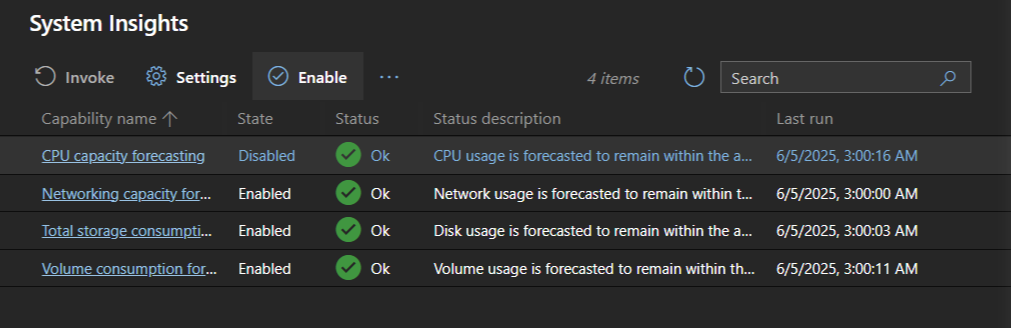
These settings can be toggled by selecting a capability in Windows Admin Center.
To enable a capability:
-
Open the Systems Insights extension.
-
Select the row of the capability you want to enable.
-
Select Enable in the top menu.
-
The capability is enabled.
Screenshot showing how to enable a capability in Windows Admin Center.
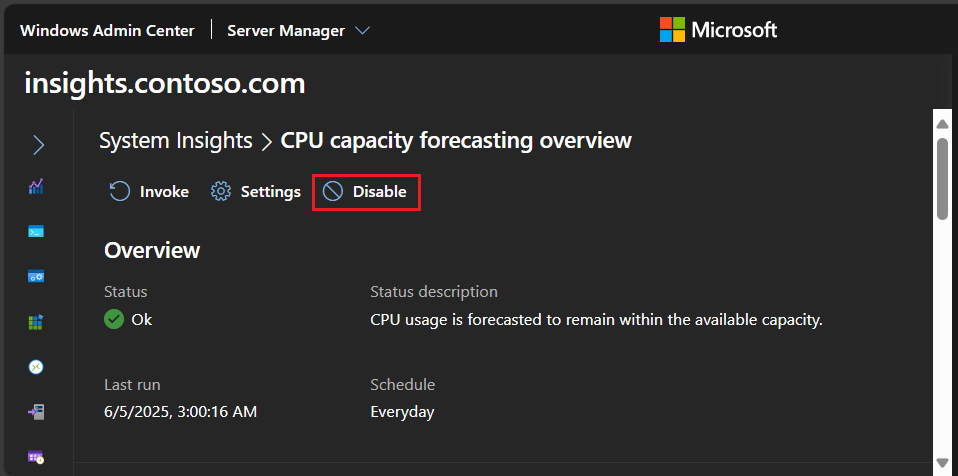
To disable a capability:
-
Open the Systems Insights extension.
-
Select the name of the capability you want to disable.
-
Select Disable in the top menu of the capability overview page.
-
The capability is disabled.
Screenshot showing how to disable a capability in Windows Admin Center.
Invoke a capability
Invoking a capability immediately runs the capability to retrieve a prediction, and administrators can invoke a capability any time in Windows Admin Center, or by using the Invoke-InsightsCapability cmdlet. To make sure invoking a capability doesn't conflict with critical operations on your machine, consider scheduling predictions during off-business hours.
PowerShell
-
Open PowerShell, and enter the following command replacing the name of the capability with the capability of your choice.
Invoke-InsightsCapability -Name "CPU capacity forecasting" -
Confirm that you want to invoke the capability.
Screenshot of using the Invoke-InsightsCapability cmdlet in PowerShell.

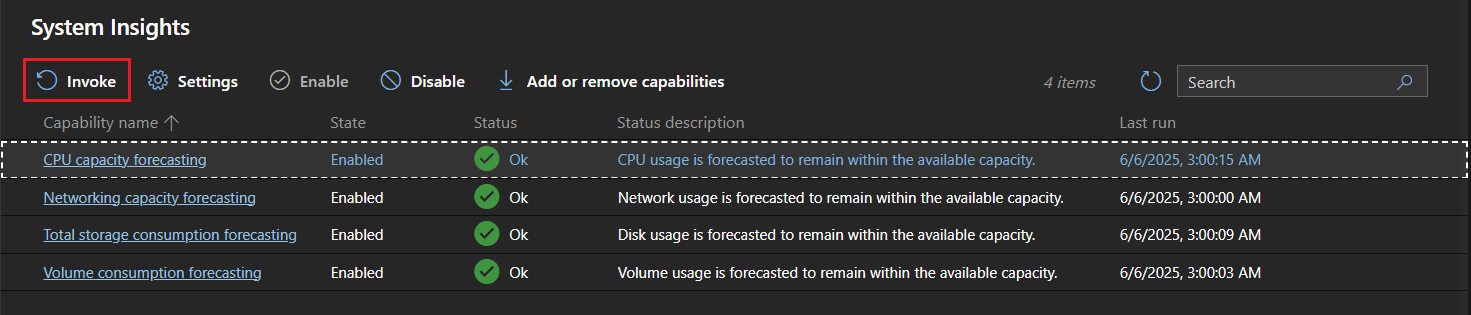
Windows Admin Center
-
Open the Systems Insights extension.
-
Select the row of the capability you want to invoke.
-
Select the Invoke button in Windows Admin Center.
Screenshot showing how to invoke the CPU capacity forecasting capability.
-
A notification appears and shows the capability was successfully invoked.
Retrieve capability results
PowerShell
Once a capability is invoked, the most recent results are visible using Get-InsightsCapability or Get-InsightsCapabilityResult. These cmdlets output the most recent Status and Status Description of each capability, which describe the result of each prediction. The Status and Status Description fields are further described in the understanding capabilities document.
Additionally, you can use the Get-InsightsCapabilityResult cmdlet to view the last 30 prediction results and to retrieve the data associated with the prediction:
# Specify the History parameter to see the last 30 prediction results.
Get-InsightsCapabilityResult -Name "CPU capacity forecasting" -History

# Use the Output field to locate and then show the results of "CPU capacity forecasting."
# Specify the encoding as UTF8, so that Get-Content correctly parses non-English characters.
$Output = Get-Content (Get-InsightsCapabilityResult -Name "CPU capacity forecasting").Output -Encoding UTF8 | ConvertFrom-Json
$Output.ForecastingResults
Windows Admin Center
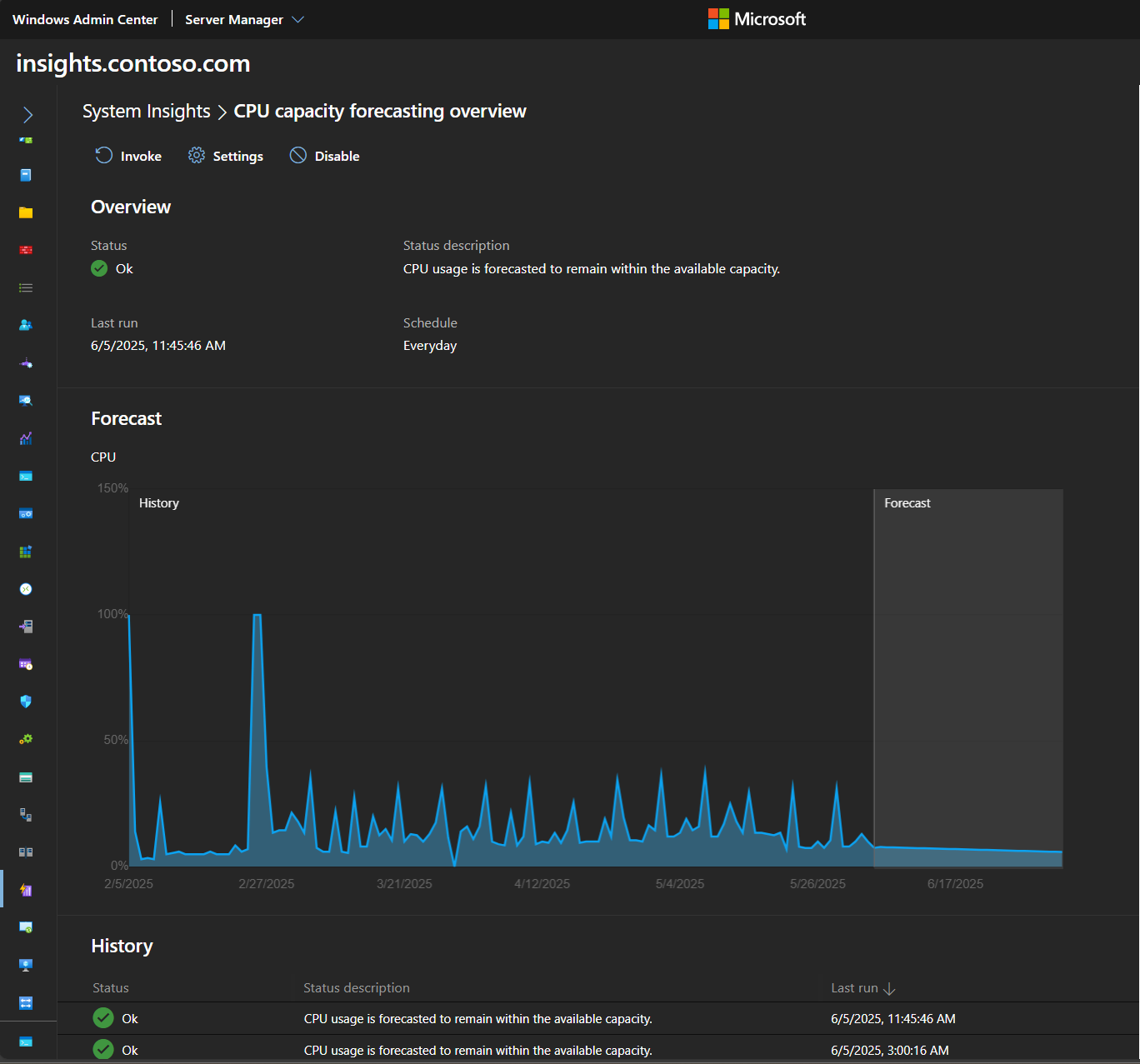
The System Insights extension automatically shows the prediction history and parses the results of the JSON result, giving you an intuitive, high-fidelity graph of each forecast:
Screenshot showing a single capability page showing a forecasting graph and the prediction history
Use the event log to retrieve capability results
System Insights logs an event each time a capability finishes a prediction. These events are visible in the Microsoft-Windows-System-Insights/Admin channel, and System Insights publishes a different event ID for each status:
| Prediction status | Event ID |
|---|---|
| Ok | 151 |
| Warning | 148 |
| Critical | 150 |
| Error | 149 |
| None | 132 |
Use Azure Monitor or System Center Operations Manager to aggregate these events and see prediction results across a group of machines.
Set a capability schedule
In addition to on-demand predictions, you can configure periodic predictions for each capability so that the specified capability is automatically invoked on a predefined schedule. Each default capability is scheduled to run every day at 3am. You can, however, create custom schedules for each capability, and System Insights supports a variety of schedule types.
PowerShell
Use the Get-InsightsCapabilitySchedule cmdlet to see capability schedules. Use the pipeline | in PowerShell to see information for all capabilities returned by the Get-InsightsCapability cmdlet.
Get-InsightsCapability | Get-InsightsCapabilitySchedule
Periodic predictions are enabled by default though they can be disabled at any time using the Enable-InsightsCapabilitySchedule and Disable-InsightsCapabilitySchedule cmdlets:
Enable-InsightsCapabilitySchedule -Name "Total storage consumption forecasting"
Disable-InsightsCapabilitySchedule -Name "Volume consumption forecasting"
You can create custom schedules for each capability using the Set-InsightsCapabilitySchedule cmdlet:
Set-InsightsCapabilitySchedule -Name "CPU capacity forecasting" -Daily -DaysInterval 2 -At 4:00PM
Set-InsightsCapabilitySchedule -Name "Networking capacity forecasting" -Daily -DaysOfWeek Saturday, Sunday -At 2:30AM
Set-InsightsCapabilitySchedule -Name "Total storage consumption forecasting" -Hourly -HoursInterval 2 -DaysOfWeek Monday, Wednesday, Friday
Set-InsightsCapabilitySchedule -Name "Volume consumption forecasting" -Minute -MinutesInterval 30
Because the default capabilities analyze daily data, it's recommended to use daily schedules for these capabilities. Learn more about the default capabilities.
Windows Admin Center
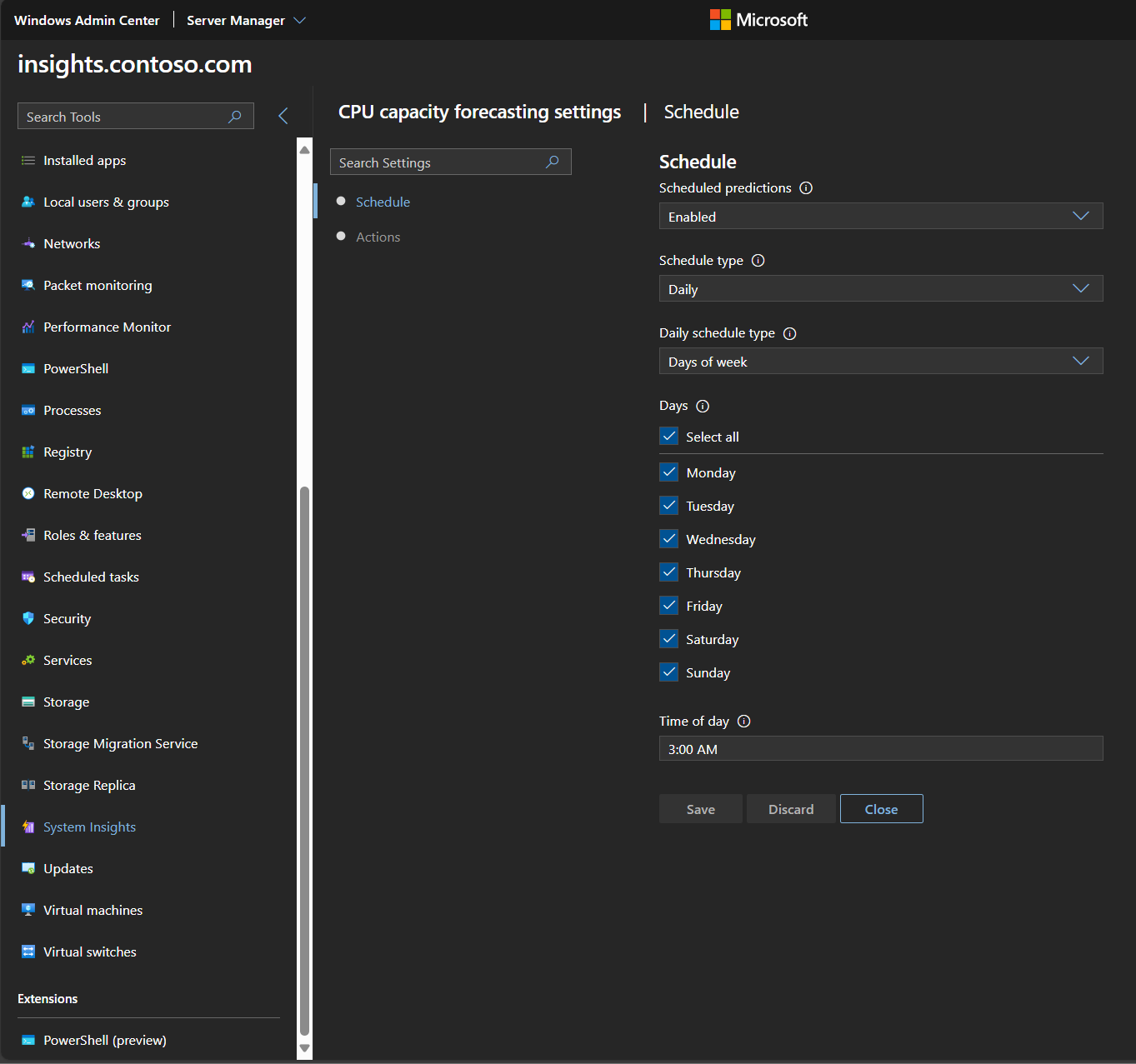
You can also use Windows Admin Center to view and set schedules for each capability.
- Select the name of the capability you want to schedule.
- Select Settings on the capability overview page.
- The Schedule tab shows the current schedule, and can be updated to run on a different schedule.
Settings page showing current schedule.
Create remediation actions
System Insights enables you to kick off custom remediation scripts based on the result of a capability. For each capability, you can configure a custom PowerShell script for each prediction status, allowing administrators to take corrective action automatically, rather than requiring manual intervention.
Sample remediation actions include running disk cleanup, extending a volume, running deduplication, live migrating VMs, and setting up Azure File Sync.
PowerShell
You can see the actions for each capability using the Get-InsightsCapabilityAction cmdlet:
Get-InsightsCapability | Get-InsightsCapabilityAction
You can create new actions or delete existing actions using the Set-InsightsCapabilityAction and Remove-InsightsCapabilityAction cmdlets. Each action is run using credentials that are specified in the ActionCredential parameter.
$Cred = Get-Credential
Set-InsightsCapabilityAction -Name "CPU capacity forecasting" -Type Warning -Action "C:\Users\Public\WarningScript.ps1" -ActionCredential $Cred
Set-InsightsCapabilityAction -Name "CPU capacity forecasting" -Type Critical -Action "C:\Users\Public\CriticalScript.ps1" -ActionCredential $Cred

Remove-InsightsCapabilityAction -Name "CPU capacity forecasting" -Type Warning
Windows Admin Center
You can also use Windows Admin Center to set remediation actions.
- Select the name of the capability you want to specify actions for.
- Select Settings on the capability overview page.
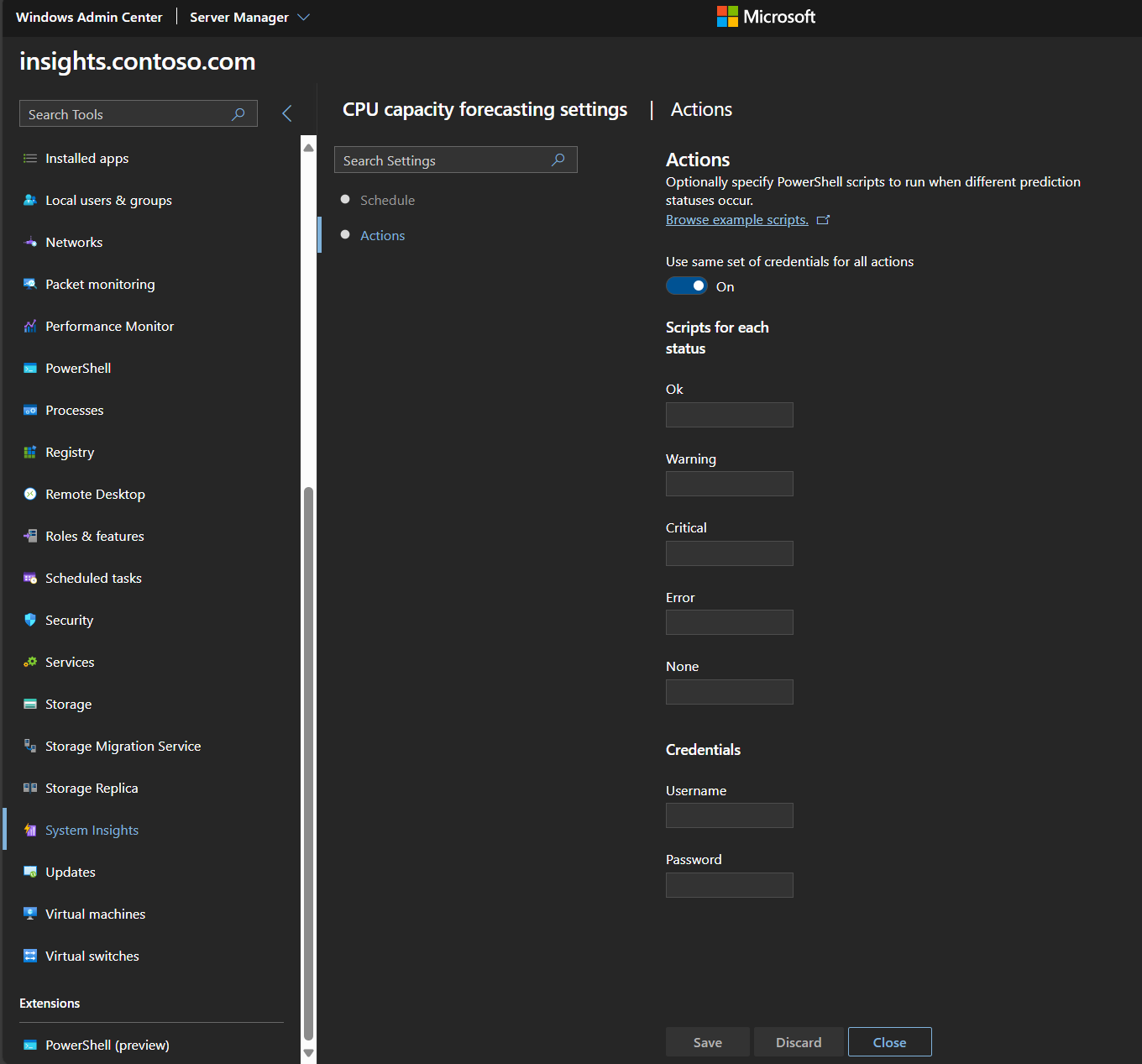
- The Actions tab shows the current actions. Browse example scripts, set scripts to run for each status, and enter credentials in this tab.
Settings page where user can specify remediation actions
Related content
To learn more about System Insights, use the following resources:
- System Insights PowerShell documentation
- System Insights overview
- Understanding capabilities
- Adding and developing capabilities
- System Insights FAQ
Source: Microsoft Learn / Windows Server documentation by Microsoft and contributors (upstream author metadata: robinharwood). Documentation licensed CC BY 4.0. Code samples are covered by the MIT License. Converted from Markdown, with links normalized and embedded media omitted.